
MGI Ai Navigator GPS+ and Ai 500: GPS, app and follow mode explained
Mgi navigator ai gps+: What the MGI Ai Navigator GPS+, Halo and Ai 500 do, plus step-by-step registration, Wi-Fi and phone app pairing from MGI's own FAQs.
What the Ai range adds to a Zip buggy
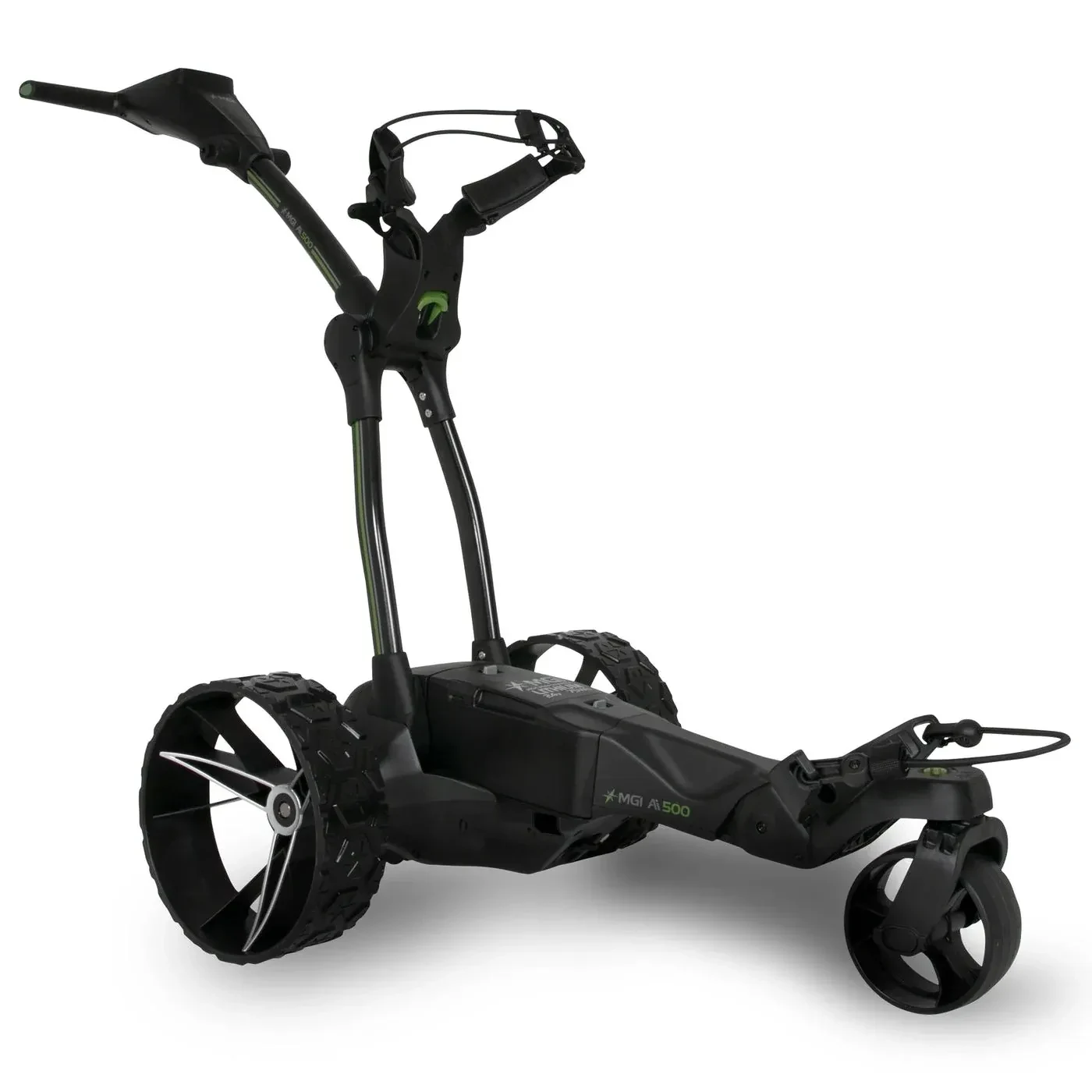
The Ai models are MGI's GPS buggies. The Ai 500 is non-remote with a four-inch colour touchscreen covering over 40,000 courses, the Ai Navigator GPS+ adds full directional remote control, and the Ai Navigator Halo adds Geo Protect hazard mapping, independent in-hub motors and a compact fold. The optional Halo Eye adds follow me, return home, point-to-point and obstacle avoidance on the Halo.
Register the buggy
Register on the buggy before you use the phone app.
- •1. When you first switch on the buggy, follow the on-screen prompts to register it with your email address.
- •2. If you skipped it, open Settings, then About, and tap Register Device.
- •3. Do not register on the MGI & Sureshot App until registration on the buggy is done.
- •4. Afterwards, register the buggy on the MGI website for warranty and servicing, using the serial number on the chassis under the battery.
Connect to Wi-Fi
The buggy only connects to a secure, password-protected network.
- •1. Go to Main Menu, Settings, Wi-Fi and toggle Wi-Fi on.
- •2. Select your network from the list and enter the password. Tap the eye icon to check you have typed it correctly.
- •3. Do not switch the unit off or tap back while it is verifying the password.
- •4. A blue network name means it connected. To check for firmware, go to Settings, then Update Device.
Pair the MGI & Sureshot App
Always pair through the app.
- •1. Make sure the buggy is registered, and use the same email address in the app.
- •2. On the buggy, go to Settings and turn Bluetooth on.
- •3. Install the MGI & Sureshot App from the App Store or Google Play and sign in.
- •4. Select your buggy in the app and tap Disconnected to start pairing. If asked, choose the device named MGI_Navigator followed by a series of characters.
- •5. Allow the Bluetooth, nearby device, location or notification permissions the app asks for.
If the app will not connect
Check Bluetooth is on for both buggy and phone, the buggy firmware and the app are up to date, and the registration email matches on both. Keep the phone close, make sure no other phone is connected, and use the phone's Bluetooth settings only to forget an old or failed pairing, then pair again in the app.
Hole View and battery
Hole View gives a full view of the green with layout and hazards, and needs the buggy to be registered and the course updated after you select it. The Ai models use a 24V lithium battery, and the Ai and Zip smart charger has a digital charge indicator.
Frequently Asked Questions
MGI Ai 500 Electric Buggy
4" Colour All-Weather Touchscreen GPS, 40,000+ Courses, Downhill Speed Control, Electronic Park Brake, Non-Remote. Available for immediate dispatch from our Yatala QLD depot with nationwide enclosed delivery.
More Australian Golf Buggy Guides
Petrol Vs Electric Golf Buggy: Real Running Costs Compared In Australia
A straight comparison of what actually costs money to run a petrol versus an electric golf buggy in Australia over time: fuel and charging, servicing, and the trade-offs each still has despite the cost gap.
4-Seater Vs 6-Seater Golf Buggies: Which Fits Your Family Or Fleet?
How to actually decide between a 4-seater and a 6-seater golf buggy: real passenger use versus occasional capacity, footprint and storage, and where the extra cost of a 6-seater genuinely pays off.
Trading In Your Old Golf Cart In Australia: What It’s Worth & How It Works
How trading in an old golf buggy at The Buggies Express actually works, what genuinely affects the figure you’re offered, and why it’s usually simpler than a private sale once you account for the effort involved.